Installation of Neon Studio
In this guide, we will explain how you can install the necessary programs to use your my-machines on Windows 10 or later versions.
Neon Studio Software
Neon Studio is an improved version of Inkscape, specifically designed to facilitate the use of your Neon. Currently, it is only available for Windows 10 or higher operating systems.
Instructions to install Neon Studio
- Access the downloads page of the software.
- Choose the link of Neon Studio compatible with your Neon.
- You will be redirected to a page on Google Drive. Click on Download > Download anyway to start the download. Fig 1:
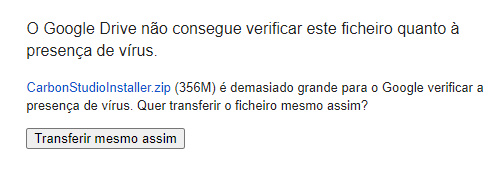
Antivirus Warning
If your browser or antivirus identifies the program as “Malicious” or “Unknown”, you can proceed with the download. Neon Studio is safe and virus-free.
- After the download, run the downloaded program.
- If a Windows security message appears, click on More info and then Run anyway
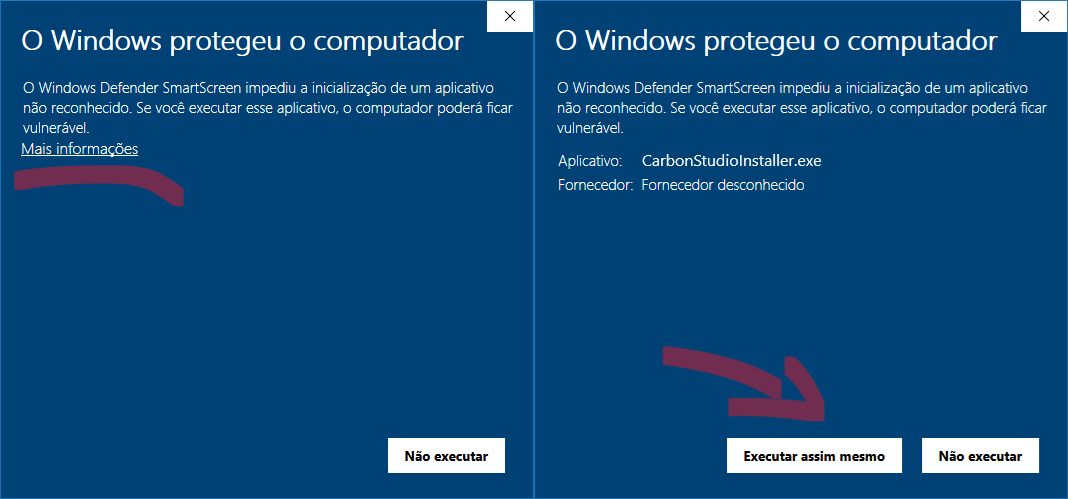
You can continue
Click on Run anyway to open the installer. Fig: 2
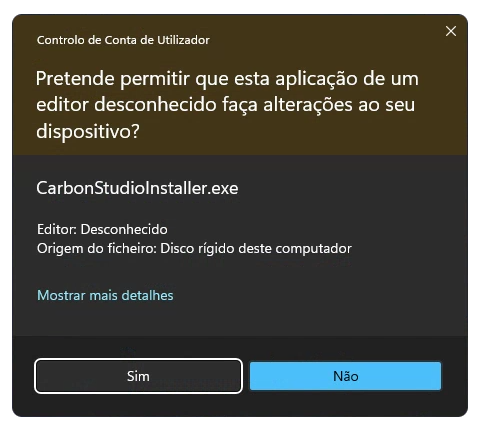
- If prompted, grant administrator permissions to complete the installation. Fig 3:
- In the installer, follow the instructions in the figures below.
- When the process is finished, click on Finish.
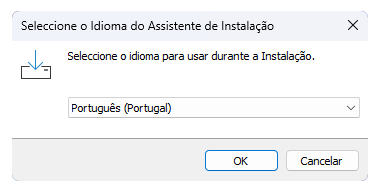
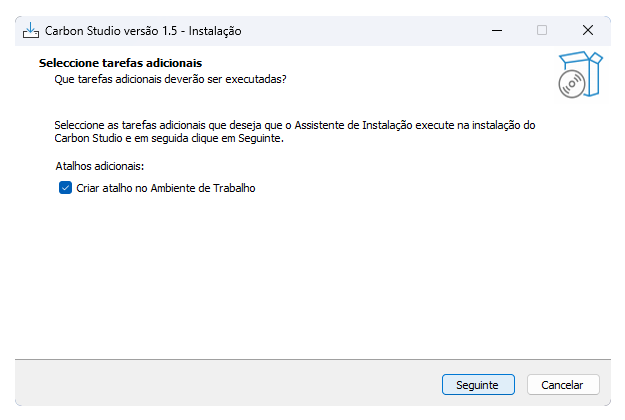
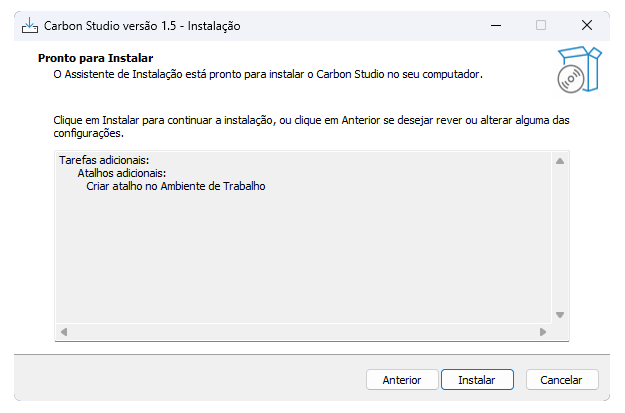
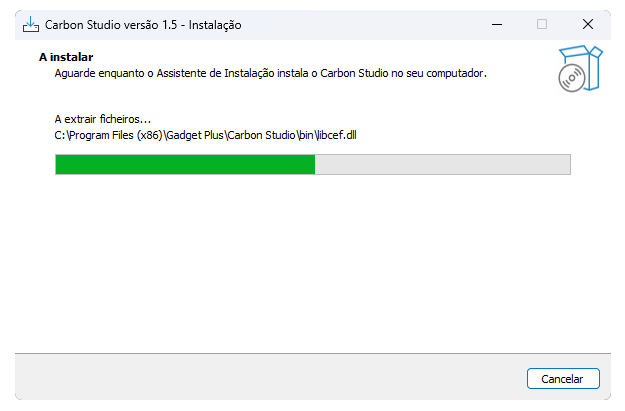
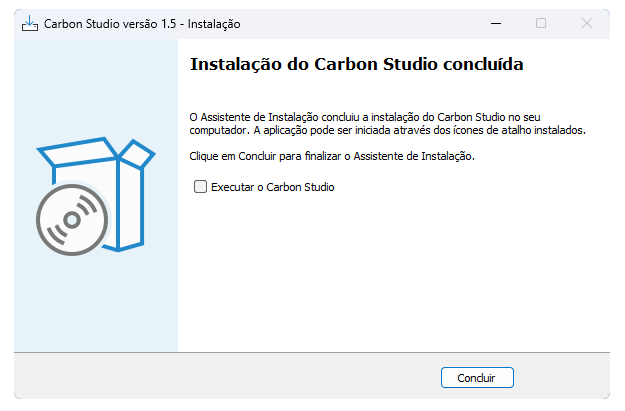
- Done, Neon Studio is installed on your system!
Want to learn more about how to use the software? Keep following our series of articles about Neon Studio Here.
You have learned how to install the necessary software to control your Neon on Windows 10 or later versions. Now, the next step is to connect your Neon to the computer.